


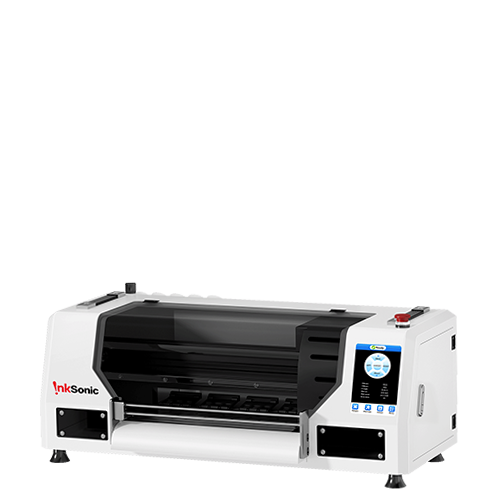







For many DTF printer users, maintenance is something they gradually learn to live with. At the beginning, most people focus heavily on print quality, colors, transfer results, or production speed. But after using a DTF printer for a while, users usually realize another reality pretty quickly: keeping the printer in good condition often matters just as much as printing itself.
Especially with white ink systems. Even when the printer is working normally every day, printhead maintenance is still something users constantly think about. White ink circulation, nozzle condition, cleaning cycles, humidity, and downtime—these things slowly become part of normal daily operation. That is why many DTF users have a slightly complicated relationship with their printers.
On one hand, a DTF printer can become a very profitable business machine. On the other hand, maintenance can sometimes feel stressful, especially when the machine sits unused longer than expected. And honestly, almost every long-term DTF user eventually has the same thought at some point: “What happens if I leave home for several days?”
Maybe you are traveling for work. Perhaps orders temporarily slow down. Or possibly you are finally taking a long-awaited vacation. No one wants to sit on a beach in Hawaii while secretly wondering whether the printer back home is slowly developing nozzle clogs.
This is exactly why InkSonic developed Vacation Mode. The purpose is simple: make printer downtime maintenance easier, more automatic, and less stressful while the machine is temporarily not being used. But what exactly does Vacation Mode do?

What Is Vacation Mode on InkSonic Printers?
Vacation Mode is an automatic maintenance feature designed to protect the printhead when the printer is not in active use. When enabled, the printer performs scheduled cleaning cycles at preset intervals to keep ink circulating inside the system. This helps maintain stable nozzle conditions and ensures that the printhead remains ready for operation even after extended idle periods.
Instead of allowing ink to sit unused inside the printhead, Vacation Mode keeps the internal system active at a low maintenance level. This reduces the risk of performance issues caused by downtime and helps users restart printing with minimal recovery time. Vacation Mode is supported on InkSonic models including the U13, U13D, H13, VF13, and F13, with slight variations depending on the device configuration.

How Vacation Mode Works
The working principle behind Vacation Mode is fairly straightforward. At scheduled intervals, the printer automatically performs maintenance actions to help keep ink moving through the printhead channels and maintain moisture around the nozzle area. The goal is not aggressive deep cleaning every time. The real purpose is preventing the printhead from sitting completely dry for long periods of time during printer downtime. On InkSonic printers, Vacation Mode includes two different maintenance actions that users can choose depending on how long the printer will remain unused.
One option performs a full printhead cleaning cycle. This process is stronger overall and pushes ink through the printhead channels more actively to help reduce ink buildup during extended inactivity. Each cleaning cycle consumes approximately 2.5 ml of ink. This mode is generally more suitable for situations where the printer may remain unused for a longer period, such as vacations, business trips, or temporary production shutdowns.
The second option performs a Flash Spray action. Compared to full printhead cleaning, Flash Spray is much lighter and consumes only around 0.5 ml of ink per cycle. Its purpose is less about aggressive cleaning and more about maintaining moisture around the nozzle area, similar to keeping the printhead lightly hydrated during shorter downtime periods. This mode is often more suitable for overnight downtime, weekends, or situations where the printer will only remain idle temporarily.
Depending on the printer model, users may be able to enable or disable Vacation Mode, adjust maintenance intervals manually, or access settings through the software or Factory Mode interface.
Different InkSonic models use slightly different Vacation Mode configurations, which is why the setup process varies depending on the printer.
Vacation Mode Settings by Printer Model
U13
On the InkSonic U13, Vacation Mode is turned off by default.
Users need to enter Factory Mode through the software to enable the feature or manually adjust the maintenance interval.
This setup gives users more flexibility depending on their printing habits and downtime schedule. For example, users who print regularly every day may prefer longer maintenance intervals, while users who leave the printer idle more frequently may choose shorter intervals for additional printhead protection.
The setup process can be completed through the following steps:
Step 1
Click “Advance,” then click “Factory”.

Step 2
Enter the password: “222222”.

Step 3
Press “Ctrl + F12” on the keyboard to enter Factory Mode.

Step 4
After entering Factory Mode successfully, click “Maintenance.”


Step 5
Select “Standby,” then set:
Flash cycle: “3000” seconds
Clean cycle: “300” minutes

Step 6
Click “File,” then click “Save”. After saving the settings, restart the printer to complete the configuration.

U13D
On the InkSonic U13D, Vacation Mode is turned off by default. Users can manually enable the feature or adjust cleaning intervals directly through the software settings. Compared to fully manual maintenance routines, this makes it much easier to maintain stable nozzle condition during vacations, weekends, business trips, or temporary production pauses.
The setup process is fairly simple and can be completed directly inside the printing software.
Step 1
First, open the printing software and enter the Settings menu.

Step 2
Inside the settings panel, locate the “Standby Clean” option.

Step 3
Check or enable the “Standby Clean” function to activate Vacation Mode.

Step 4
Set the automatic cleaning interval according to your maintenance preference. In this example, the interval is configured to run every 300 minutes.
Users can adjust the interval depending on how long the printer will remain idle and their typical production schedule.

Step 5
After adjusting the settings, click “Save Settings” to complete the configuration.

H13
On the InkSonic H13, Vacation Mode runs automatically every 12 hours by default. For many home businesses and small studios, the default interval already provides a fairly balanced setup between printhead protection and ink consumption. Instead of allowing the printer to remain completely inactive for too long, the system continues performing automatic maintenance in the background during downtime to help maintain healthier nozzle condition.
Users can still manually enter the software and adjust the maintenance interval if needed. The setup process is straightforward and can be completed directly inside the printer software.
Step 1
Open the printer software and click “Print Set” in the left sidebar menu.

Step 2
On the right side of the Print Set interface, locate the “Standby Clean” section. Inside this section, users can manually adjust the automatic maintenance interval according to their usage habits and downtime schedule.
For users who leave the printer idle more frequently, shorter intervals may provide additional printhead protection. For users who print regularly every day, the default settings are often already sufficient.

VF13
The InkSonic VF13 Dual XP600 model also uses a default 12-hour Vacation Mode interval. Like the H13, users can manually adjust the maintenance timing through the software depending on their production schedule and downtime frequency.
Because dual-head systems usually involve more continuous ink activity during operation, maintaining stable printhead condition during idle periods becomes even more important for long-term reliability.
The setup process can be completed directly through the printing software.
Step 1
First, open the printing software and click “Settings”.

Step 2
Find the “Standby Clean” option inside the settings panel.

Step 3
Check or enable the “Standby Clean” function.

Step 4
Set the automatic cleaning interval according to your maintenance preference. In this example, the interval is configured to run every 300 minutes.

Step 5
Click “Save Settings” to complete the configuration.

Why Vacation Mode Matters for Real Users
A lot of DTF users underestimate how much downtime affects printhead condition. The printer may look perfectly fine when turned off. But inside the printhead, white ink slowly begins settling the moment circulation stops.
Then a few days later, printing resumes, and small problems begin appearing. Sometimes it is not even a severe clog at first. The printer just feels slightly unstable compared to before. A few nozzles disappear. White ink coverage becomes inconsistent. Cleaning frequency increases. Print quality becomes less predictable.
And honestly, this is one of the most frustrating parts of DTF printing for many users. Because the problem often starts small. Then suddenly half the morning disappears trying to recover white ink stability before customer orders can even start printing.
That is why Vacation Mode exists. The purpose is not replacing regular manual maintenance completely. The purpose is to help reduce the risks that naturally appear when printers remain inactive for extended periods.
For many users, especially home-based businesses, side hustles, Etsy sellers, or part-time production setups, this creates a much more practical long-term maintenance experience. Instead of constantly worrying about whether the printer has been sitting idle too long, the machine can continue performing basic maintenance automatically in the background.
Additional Maintenance Resources
Although Vacation Mode helps reduce downtime-related maintenance problems, regular manual maintenance is still important for long-term printer stability.
Users should still periodically check:
Nozzle condition
White ink circulation
Humidity levels
Cleaning station condition
Ink system maintenance
Vacation Mode should be viewed as a helpful support feature rather than a complete replacement for normal printer maintenance routines.
Additional maintenance tutorials and support resources can help users maintain healthier long-term printer performance alongside Vacation Mode usage.
Final Thoughts
Vacation Mode may sound like a small feature at first, but for many real DTF users, it solves a very common problem. DTF printers do not always run continuously every single day. Life gets busy. Orders fluctuate. Vacations happen. Sometimes the machine simply sits unused longer than expected.
And nobody wants to spend their vacation worrying about whether the printer back home is slowly developing clogged nozzles.
That is exactly why InkSonic developed Vacation Mode. The goal is not to replace regular maintenance completely but to make printer downtime easier to manage and less stressful for users who cannot always stay beside the machine. By automatically performing scheduled maintenance actions during inactivity, the system helps maintain healthier printhead conditions and reduces some of the maintenance pressure that often appears after long idle periods.
If you would also like to learn more about manual printer maintenance for different InkSonic models, you can refer to the maintenance guides below:


